RAUM Join Guide: From Invitation to Your First VR Session
Everything you need to accept your invitation, check your device, and get moving in RAUM.
the join page – your self check in
Sign up or login to you RAUM account
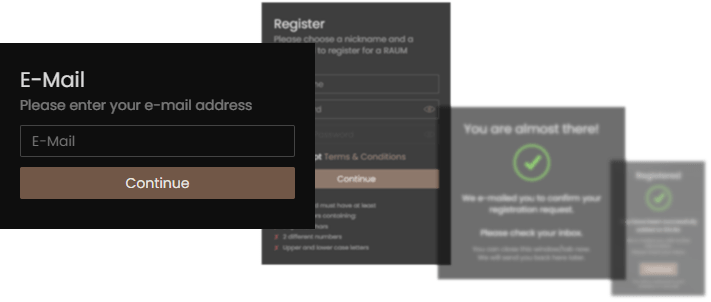
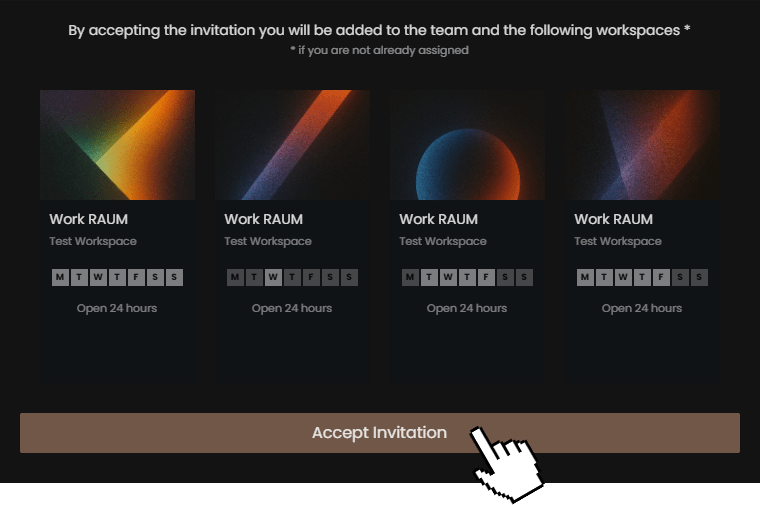
Accept invitation to join the team and get access to the workspaces from this link
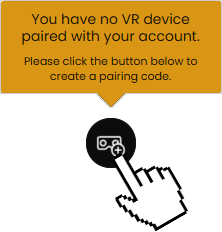
Pair your headset when yellow popup appears
Start in Headset
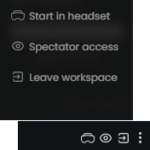
click start in headset to immediately enter thw workspace next time you enter RAUM home
Join from browser
No more actions required, it will take some minutes until session is established
Device check before you join
Fully charge your device ✔
Connect to a stable WiFi ✔
Install RAUM for free ✔


Note: use mobile hotspot on your smartphone if internet connection is unstable
New to RAUM? Watch the 9-minute intro tour: teleporting, your avatar, controls, the watch, tools, the display and 3D content.
You are currently viewing a placeholder content from Vimeo. To access the actual content, click the button below. Please note that doing so will share data with third-party providers.
More InformationJoin in RAUM
Launch the RAUM app on your device
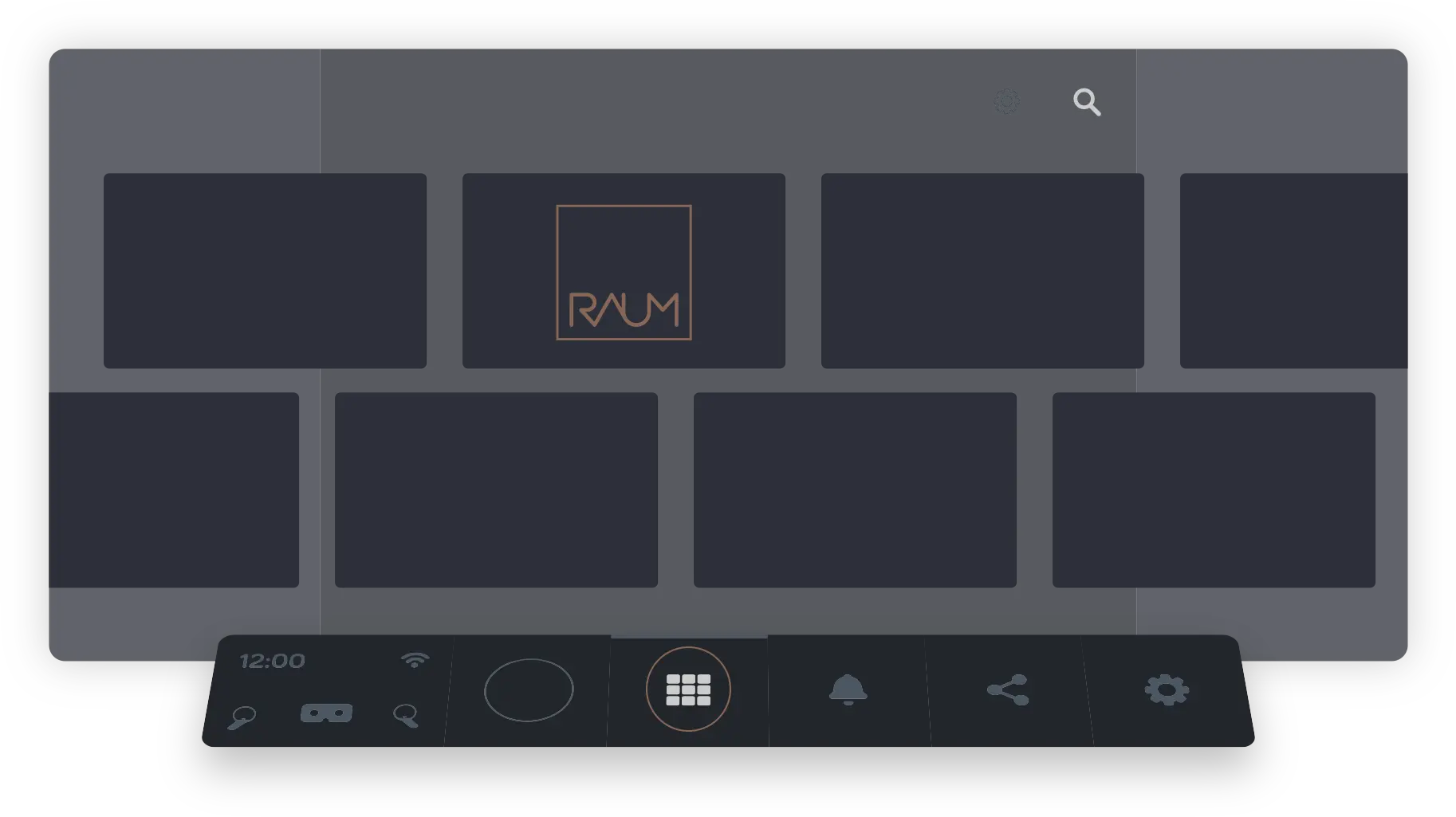
Enter the 9-digit code.
User your virtual fingertip to dial in
Teleport towards the workspaces.
and touch the tile you want to enter
Have a pleasant journey
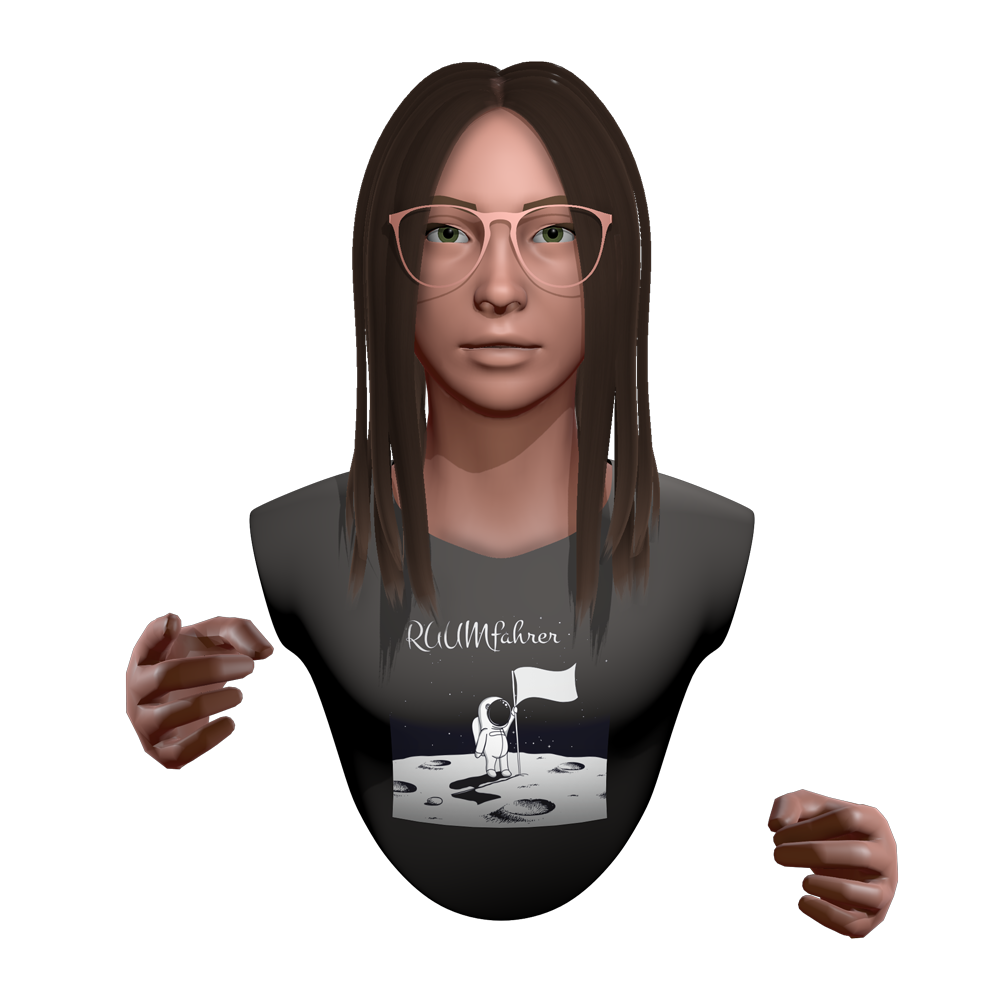
Remember to charge your device before your next journey
How to navigate RAUM
Navigation and Controls
Select
Use fingertip to touch and click menus and buttons (real index finger, virtual finger indicates position)

Use
Press the trigger button of your controller Use your index finger to use any tool in your hand

Grab
Reach out for items and press Grip button on controller to grab items (middle finger)

Teleport
Press teleport button and keep pressed, position shoes to destination, release X or A button (thumb)


Turn around
Use thumbstick to rotate clockwise or anti clockwise (thumb)


Option Menu
Use Y or B buttons for optional item menus or remote menus. Keep pressed, aim at item and release (thumb)
Avatar Creation.
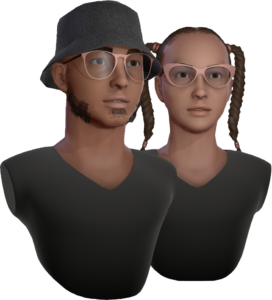
Avatar by default
RAUM gives you a random avatar by default. You can change it any time.
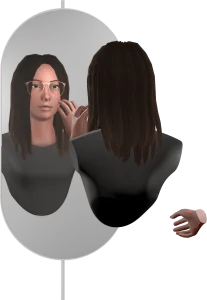
See how you look
Go to the wardrobe in RAUM Home and teleport in front of the mirror to see how you look.
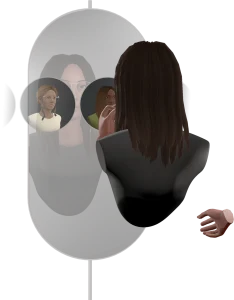
Set your Avatar
tap the “New Identity” icon and pick a preset.
Press SAVE to apply it.